Name it
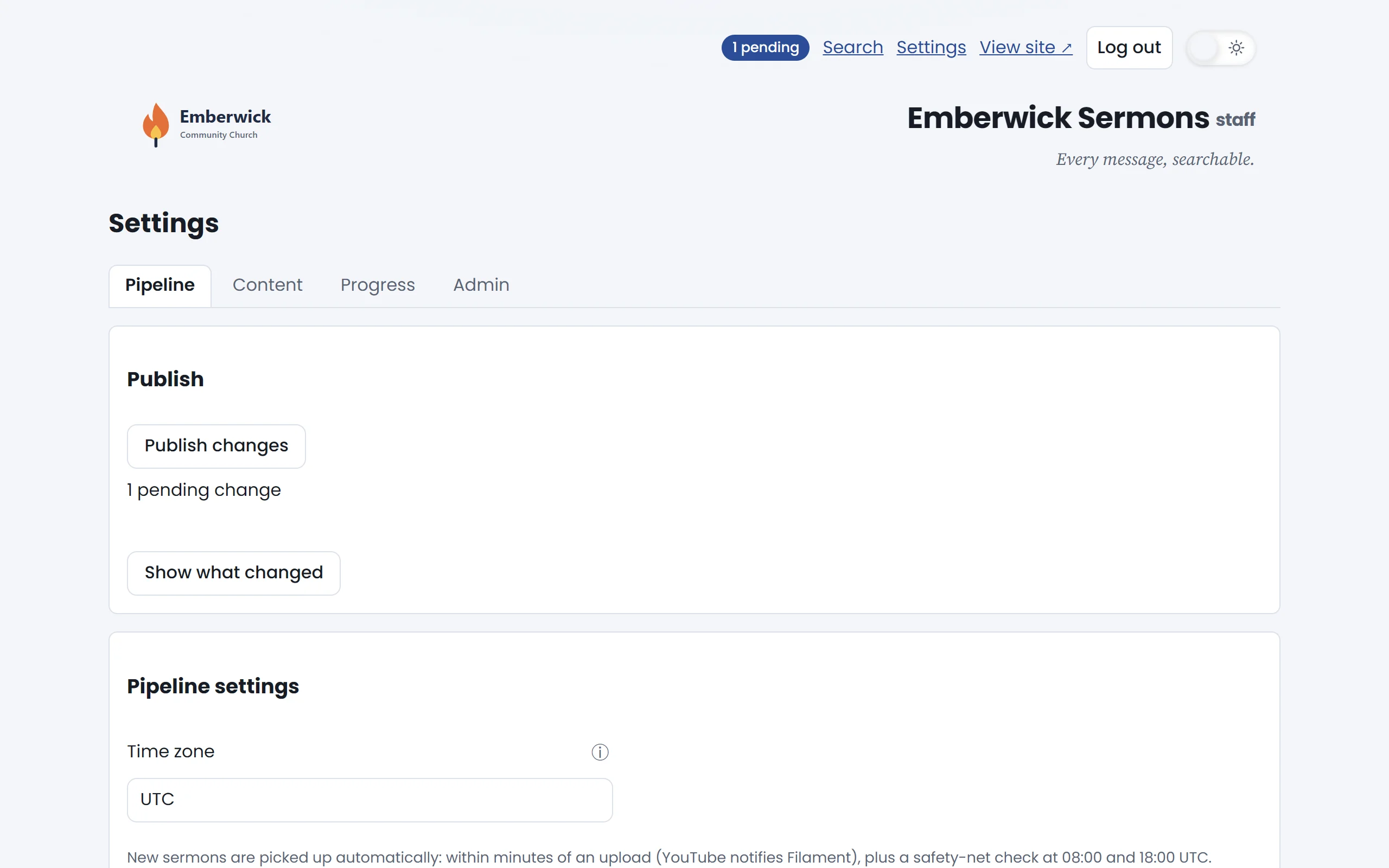
Open Settings
Everything about how the library looks and runs is under Settings.
Open Settings.
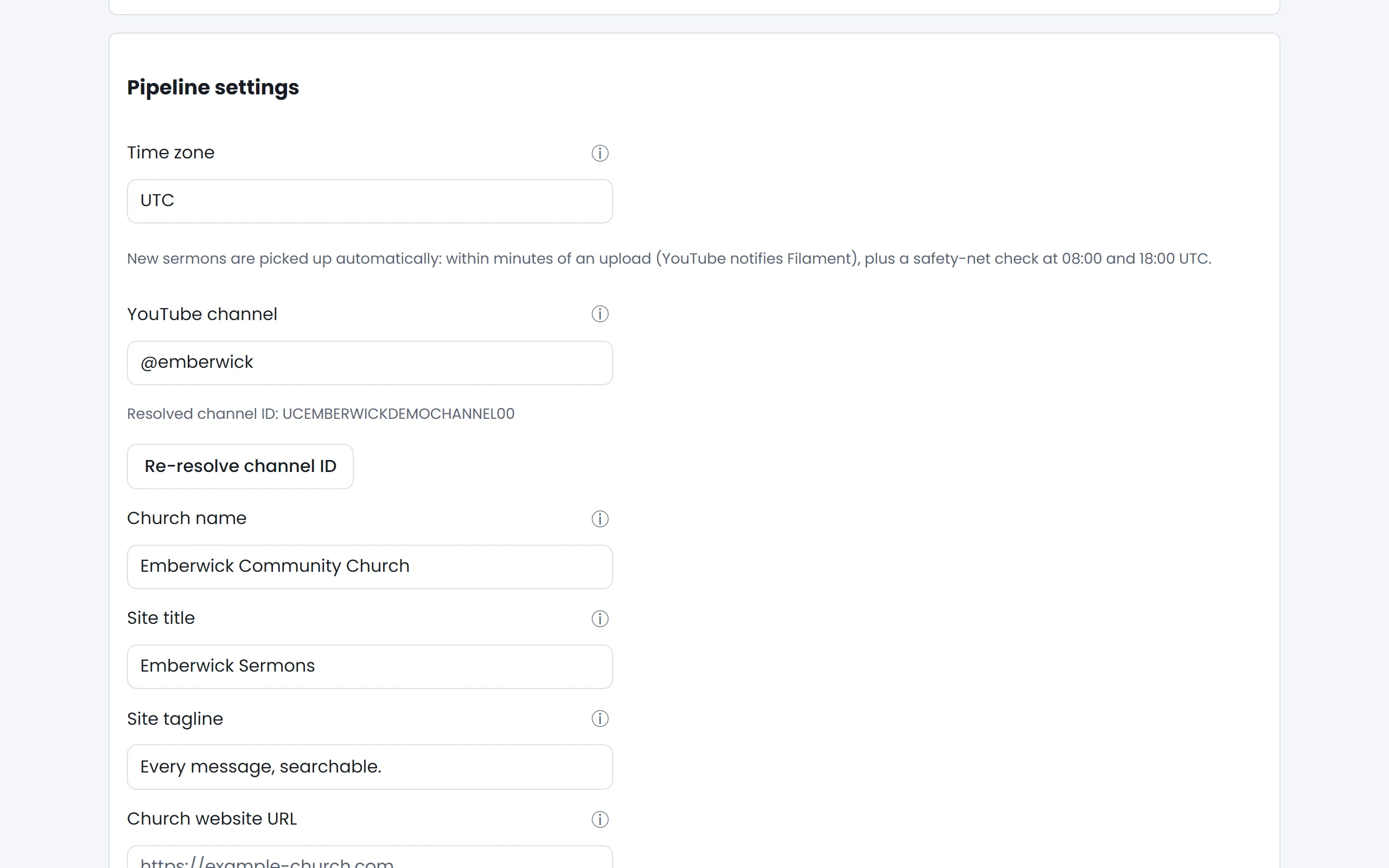
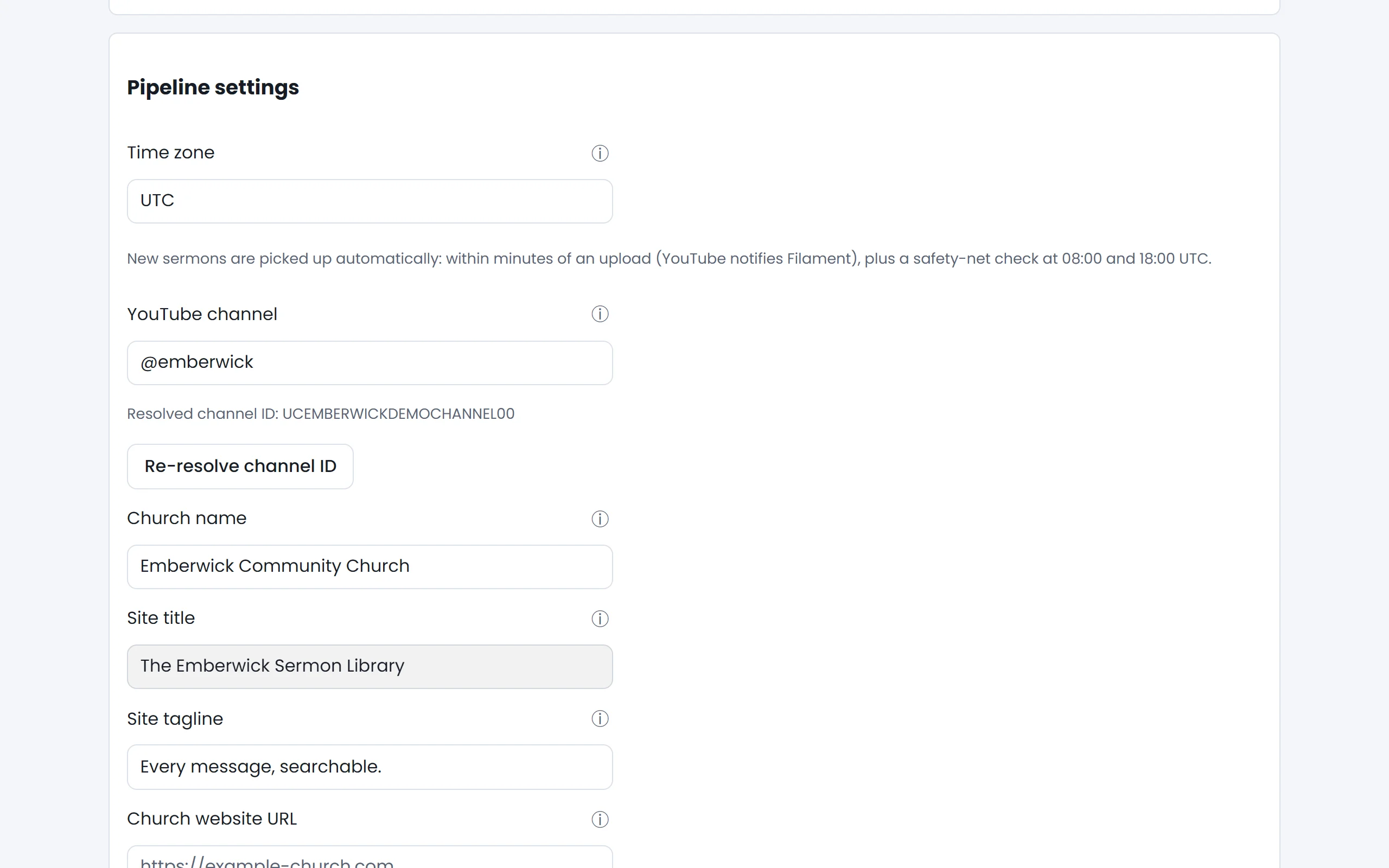
Give the library a title
The title is the first thing visitors read. It appears at the top of every page.
Type The Emberwick Sermon Library
Add a line beneath it
A short tagline sits under the title.
Type Sunday's message, all week.
Choose your translation
Scripture is shown in the version your church reads from. One sermon or one guide can use another.
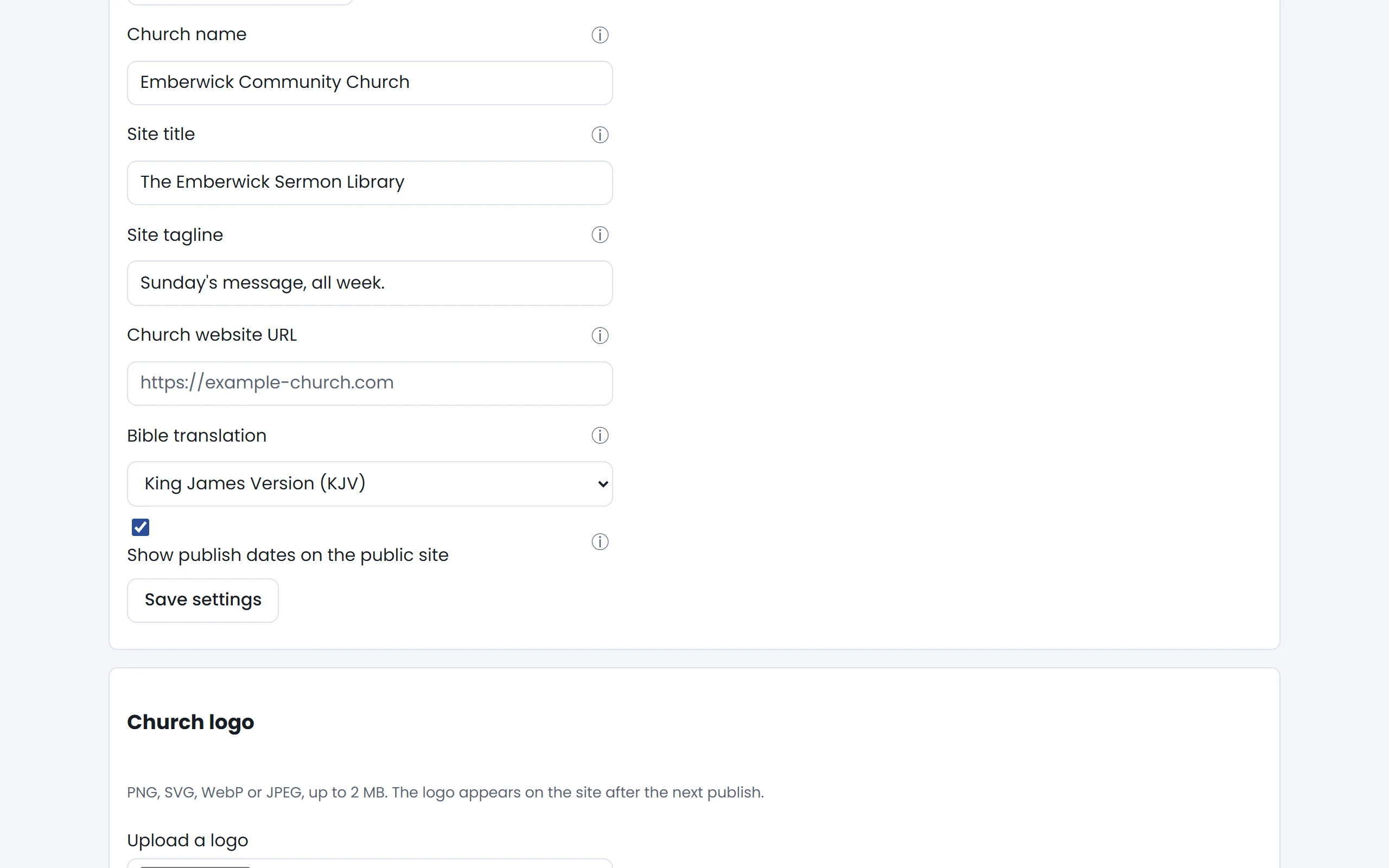
Save the settings
Saved settings wait for the next publish, like every other change.
Save the settings.
Brand it
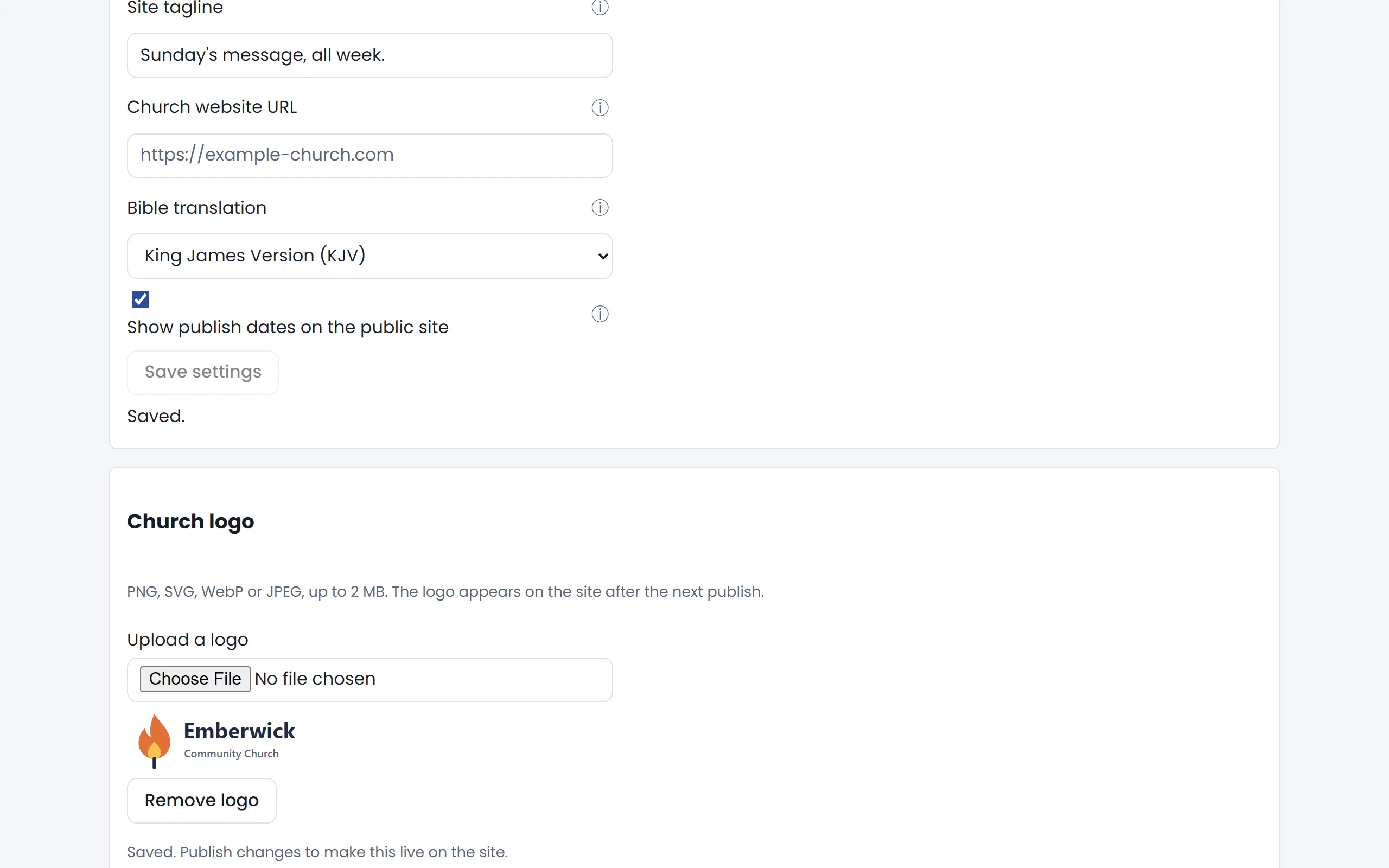
Upload your logo
A PNG, SVG, WebP or JPEG. A second logo for the dark theme is optional.
Choose a logo file.
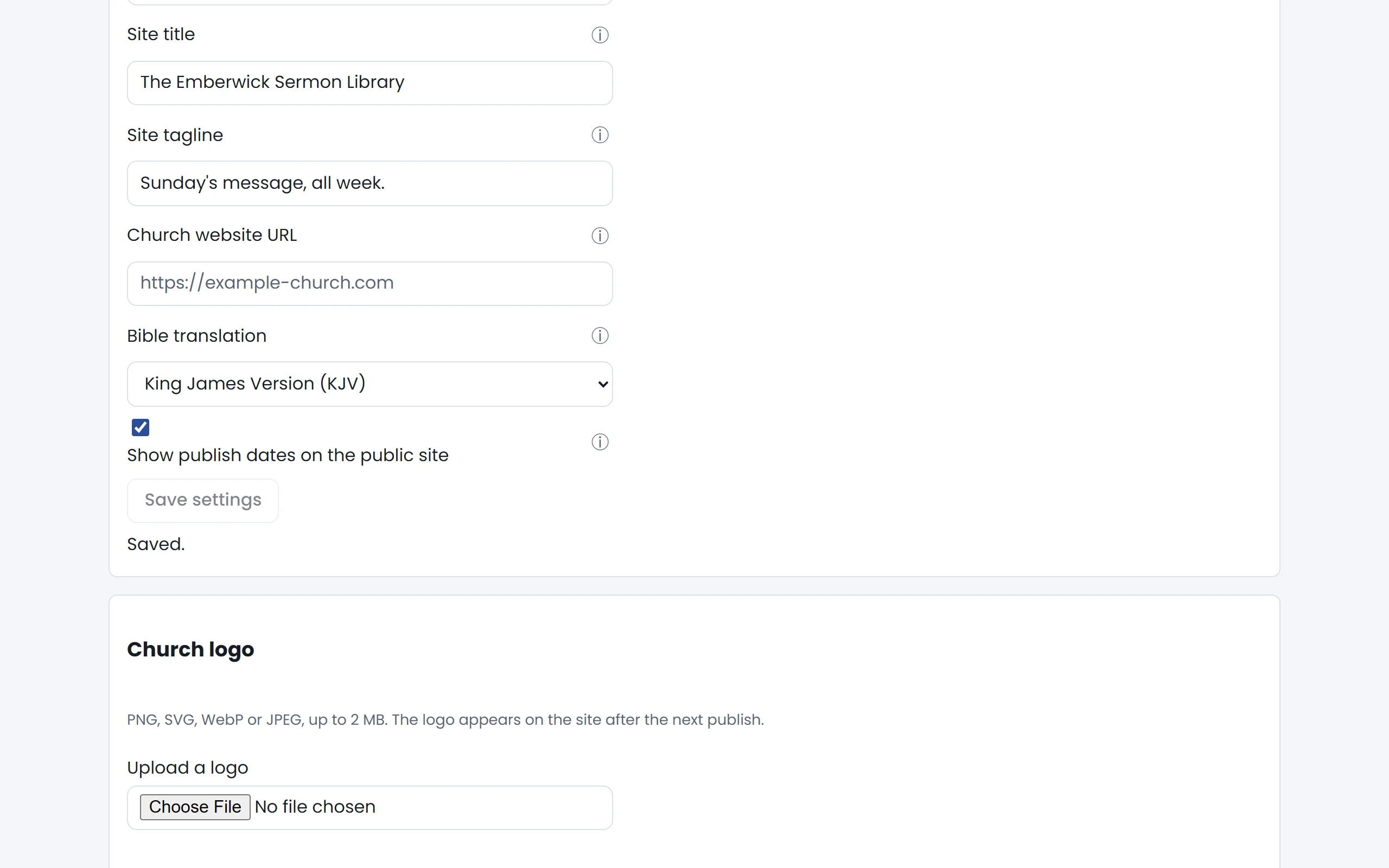
Your logo, ready to go out
The logo is saved. Like every other change, it reaches the public site on the next publish.